Snapcom Click-to-Call

You're installed. Two quick steps and you're calling.

This guide covers pinning the extension, signing in, and how calls work. It takes about a minute.

1

Pin the extension so it stays visible

Chrome hides new extensions behind the puzzle-piece icon. Pin Snapcom Click-to-Call so the icon is always one click away:

https://…
Click the puzzle piece next to the address bar…
Snapcom Click-to-Call
…then click the pin next to Snapcom Click-to-Call.
2

Sign in with your Snapcom portal account

  1. Click the Snapcom icon in your toolbar.
  2. Enter your Snapcom portal username and password. If your account uses two-step verification, enter the code when asked.
  3. That's it. You stay signed in across browser restarts, so this is a one-time step per computer.

Your password is not stored in the extension. Sign-in goes through the Snapcom CallIQ service and the extension keeps only a token it refreshes automatically.
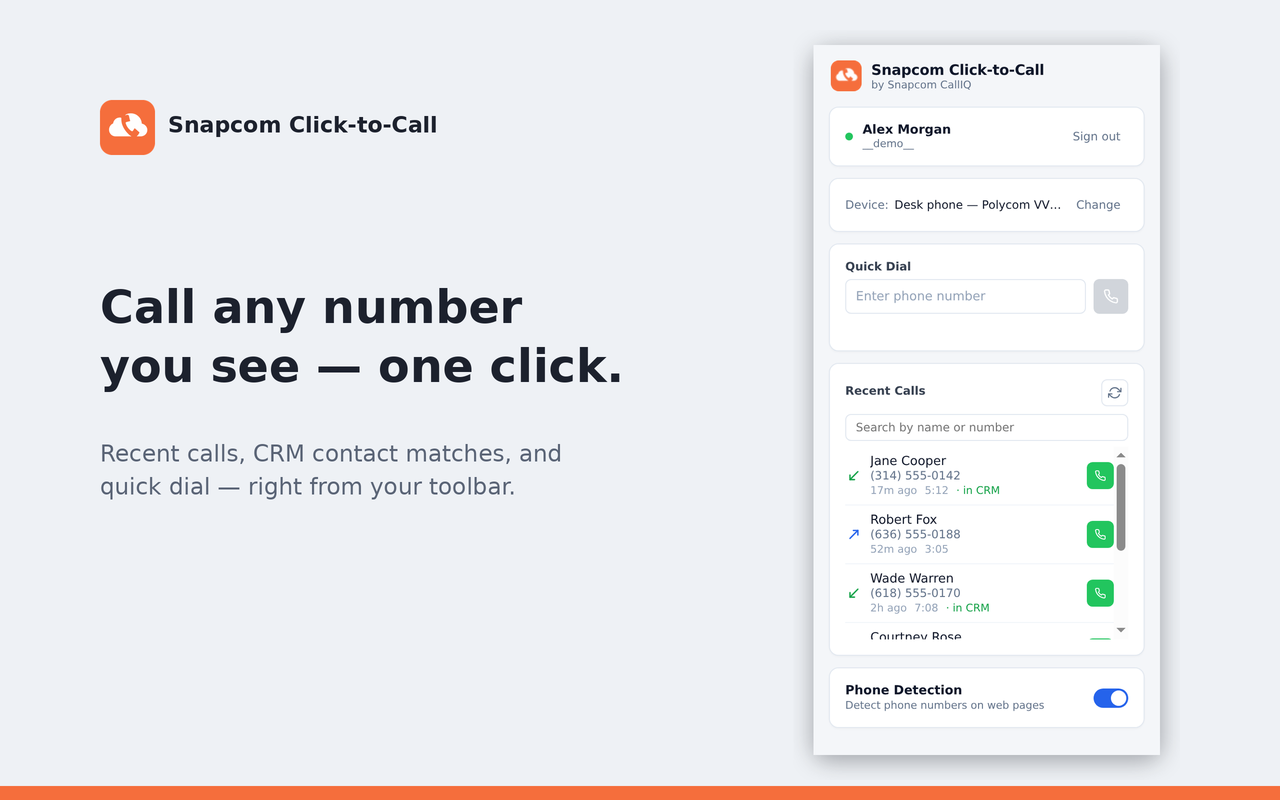
No Snapcom account, or just want basic click-to-call? From version 0.8.1 you can choose "Use without signing in" on the sign-in screen. Numbers on pages stay clickable and open your computer's default calling app. Signing in adds Snapcom dialing through your desk phone, device selection, and the incoming-call window.
The extension popup with quick dial, device selection, and recent calls
3

Click a number to call it

The extension detects phone numbers on the pages you visit and adds a call button next to them. Click one and here's what happens:

  1. Your phone rings first. Answer it.
  2. Snapcom then connects your call to the number you clicked.

Use the device selector in the popup to choose which phone rings: your desk phone, softphone, or another registered device. You can also type a number into the popup's quick-dial field.
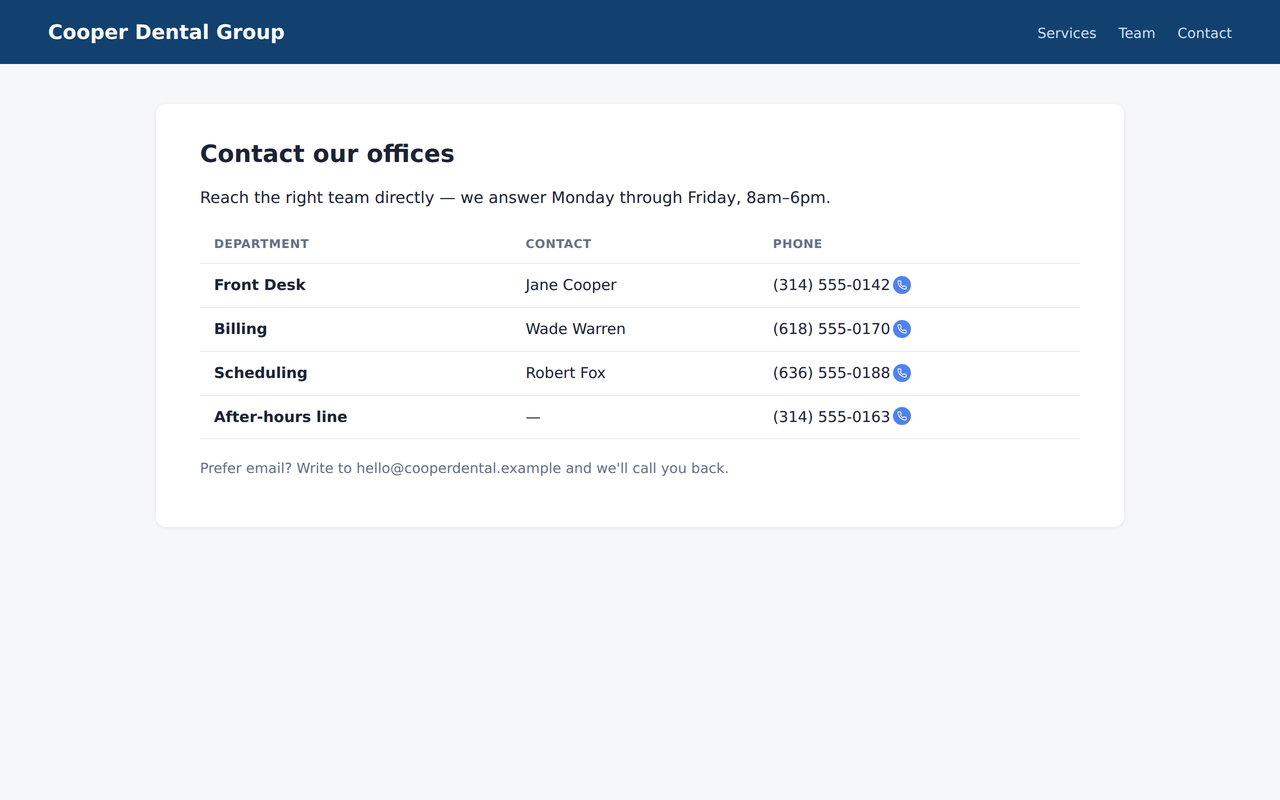
A web page with phone numbers highlighted by the extension
If a page was already open when you installed the extension, refresh it once to see the call buttons.
4

Know who's calling before you answer

When a call comes in, a small window opens with the caller's number and name, their recent calls with your team, who helped them last, and how those calls went. If you miss the call, the window stays open with a call-back button.

Call summaries appear only for teammates who chose to share them. Transcripts, recordings, and scores are never shown. If your admin has enabled it, the window also shows CRM context for the caller, such as open deals and the latest note.
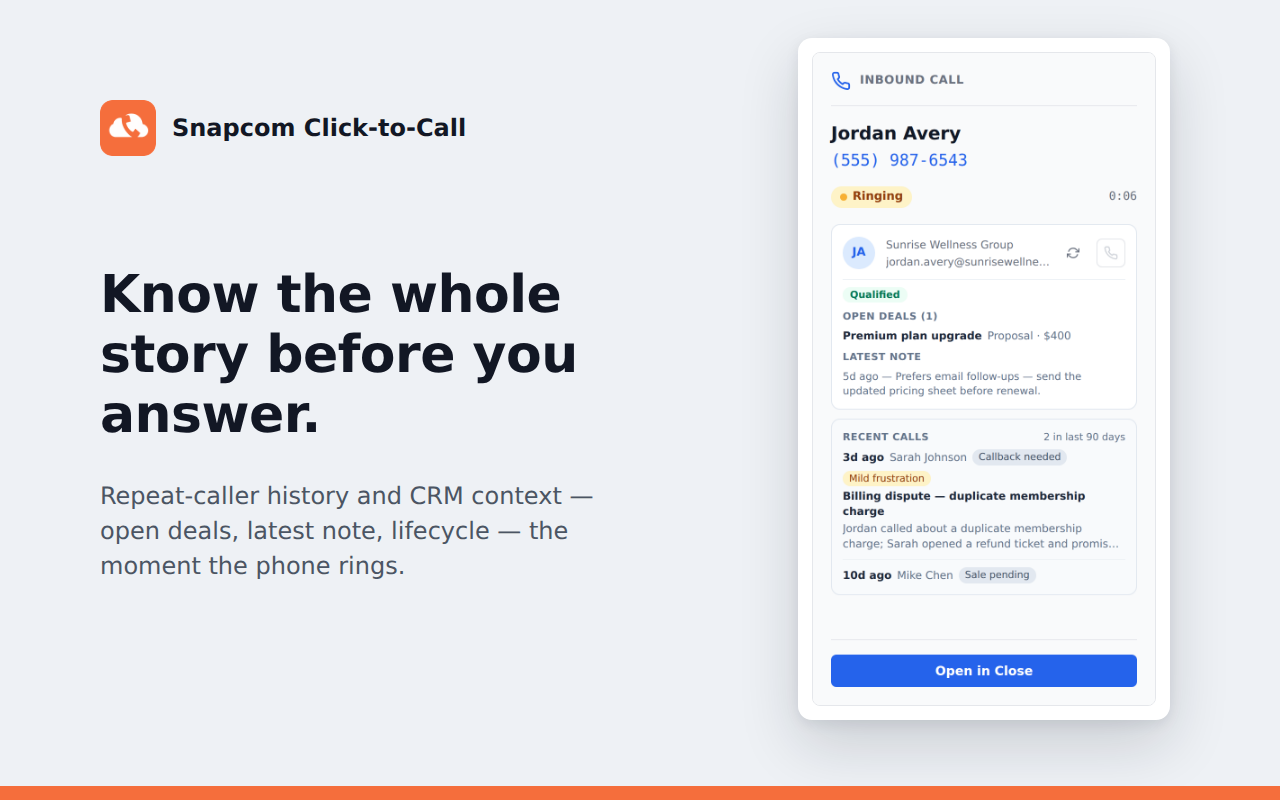
The incoming-call window showing caller history and context
?

Troubleshooting

Numbers are not highlighted on a page
Refresh the page. Pages that were open before the install don't show call buttons until reloaded. Also check the detection toggle in the popup is on, and that you are signed in (or using the no-sign-in mode).
Sign-in fails
Check your username and password against the Snapcom portal. If your account uses two-step verification, wait for the code and enter it when prompted. Still stuck? Contact Snapcom support.
The popup says it can't load devices
Accounts with basic permissions can't list devices, and that's expected. Calls simply ring your default phone and click-to-call keeps working.
Clicking a number does nothing
Confirm you're signed in (click the extension icon), your phone is registered, and do-not-disturb is off. If the popup's quick-dial works but page clicks don't, refresh the page.
Recent calls or contact details ask me to sign in
Those panels use your CallIQ session. Sign in at calliq.snapcom.com in this browser, then reopen the popup.
The incoming-call window doesn't appear
Chrome must be running and the extension signed in. The window can take a few seconds after the ring starts. If it never appears, contact Snapcom support.

Need a hand?

Your Snapcom support team can help with sign-in, devices, and anything else: support@snapcom.com
